Container Instance Power On/Off
After the container instance is created, it supports power off and power on operations. Powering on starts billing, while powering off stops billing.
Power Off
Prerequisites: A container instance has been created and is currently running.
The steps are as follows:
-
Log in to d.run, go to Compute Cloud -> Container Instances , select a running instance, click the ┇ on the right side of the list, and choose Power Off from the dropdown list.
-
In the pop-up prompt, carefully read the power off notice, then click OK
Note
- Currently, powering off an instance does not support saving the system disk, please ensure data backup is done. Support is expected in February 2025.
- Instances that have not been powered on for 15 days will be automatically released.
- GPU resources will not be reserved after power off. If there are insufficient available GPU resources of the required model when powering back on, you will need to wait.
Update Configuration (Scale Up or Down)
After a container instance is powered off, you can select a new SKU through Update to scale the instance up or down.
Prerequisite: The container instance has been created and is in the Stopped state.
The steps are as follows:
-
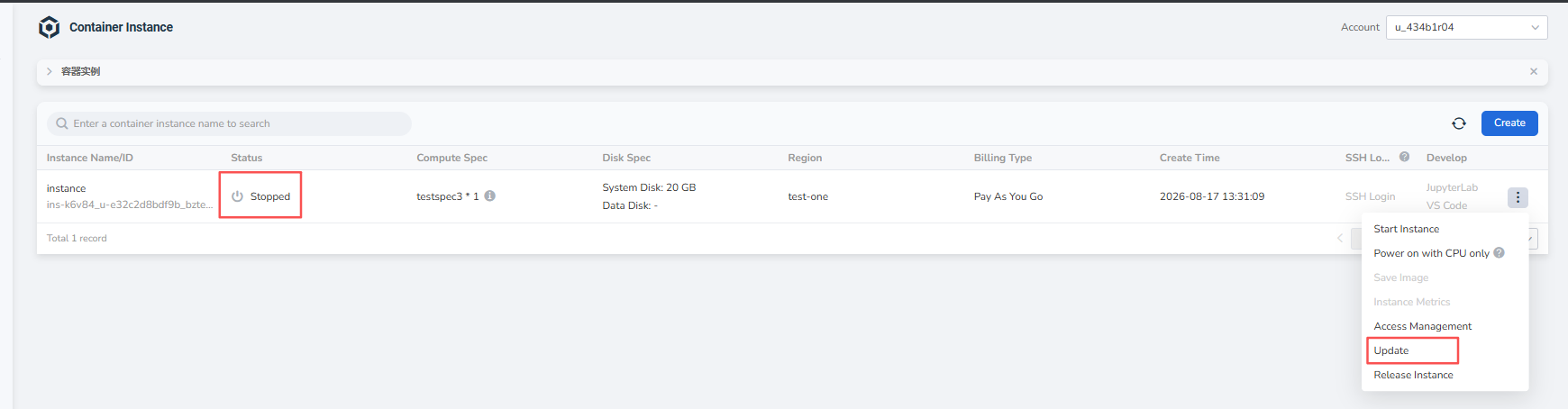
Go to Compute Cloud -> Container Instances, find an instance in the Stopped state, click the ┇ on the right side of the list, and choose Update from the dropdown list.
-
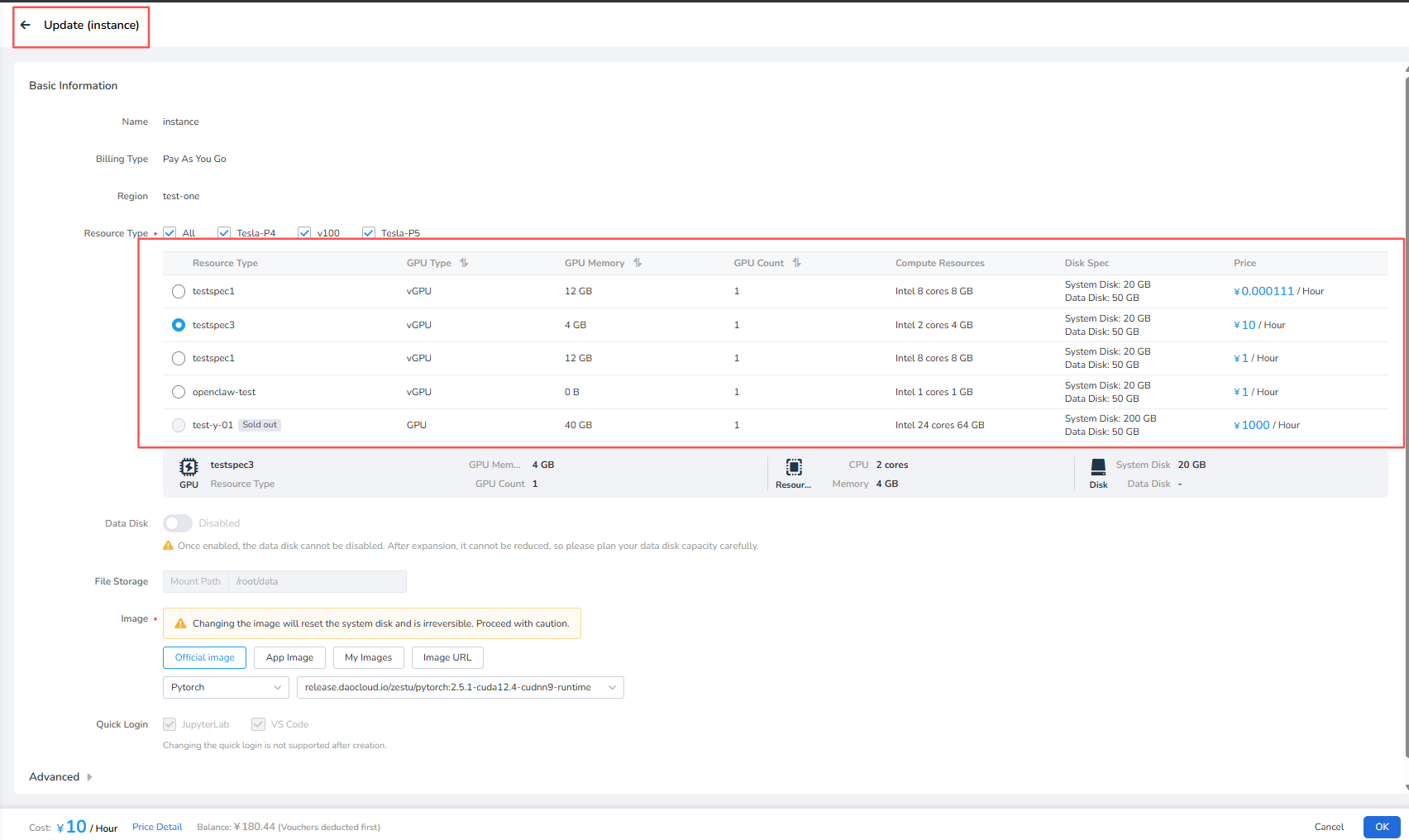
On the Update page, select a new SKU, confirm the GPU type, GPU memory, GPU count, compute resources, disk configuration, and price, then click OK to complete the update.
Note
- Configuration updates are supported only when the container instance is powered off.
- After the scale-up or scale-down is complete, the container instance remains powered off. Manually choose Start Instance to power it on.
Power On
Prerequisites: A container instance has been created and is currently powered off.
The steps are as follows:
-
Log in to d.run, go to Compute Cloud -> Container Instances , select a powered-off instance, click the ┇ on the right side of the list, and choose Start Instance from the dropdown list.
-
If the required GPU resources are sufficient, click OK to start. If resources are insufficient, you may need to wait.
Note
- Instances that are queued or starting do not incur charges; billing begins when in running status.
- Container instances do not actively refresh their status; you need to manually refresh to check the real status of the container instance.